Runlines
Record mode Pro
Record mode: hear the scene with your own voice in it
Record mode is the voice-memo method without the tedious half. You record only your own lines, once each. Runlines reads the other parts, and when you play the scene back your recordings drop into your spots between them, so you hear the whole exchange at its real rhythm.
How Record mode works
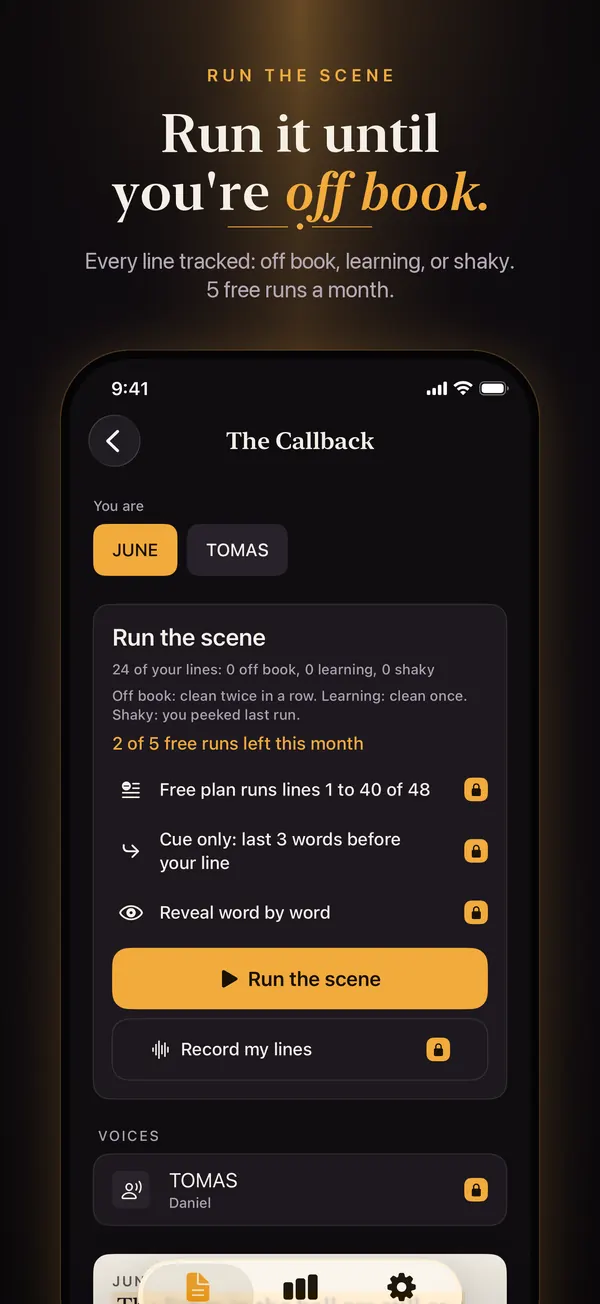
Open a script and tap Record my lines
It sits under Run the scene on the script screen, once you have picked your character under "You are".
Hold to record each line
Every one of your lines is listed on the paper page with a Hold to record button. Press and hold, say the line, let go. Tap Play to hear it back, and record again if you want another take. The top of the screen counts them, for example "3 of 24 lines recorded."
Tap Play the scene with my voice
Runlines reads the other characters with your partner voice and plays your recording at each of your lines. If a line has no recording yet, the scene stops there and waits for you to say it live, the same as a normal run.
Record mode has its own "Cue only: last 3 words before your line" switch. Turn it on and the partner lines are cut down to the words just before each of yours, which makes a fast drill of the whole scene. See cue-only runs.
When hearing yourself helps
- Learning the rhythm of the exchange. Playback lets you hear how long your speeches run against the other part, and where the scene speeds up.
- Checking the words. Follow the page while your recording plays. A swapped word or a dropped "but" is easier to hear than to notice while you are speaking.
- Hearing it with your hands free. Once your lines are recorded, a playback needs no taps, so you can listen while you set up for a self-tape or get ready to leave.
Playback is for listening. To test whether a line is really in your head, use a normal run, where your line stays covered until you say it.
Compared with recording a voice memo
The usual way to rehearse with a recording is to read every other character into Voice Memos, leave a silence where each of your lines goes, and then play it back and fill the gaps. It works, but you record the parts you are not learning, you guess the length of each gap, and after a mistake you scrub back by hand. In Record mode Runlines reads the other parts for you, you record only your own lines, and a missing recording simply waits for you.
Where your recordings go
The microphone is used only while you hold the record button, and only after you allow microphone access when iOS asks. Each recording is saved on your iPhone next to its script. Recordings are never uploaded, and Runlines has no speech recognition, so nothing transcribes or checks what you say. Deleting a script deletes its recordings. If you turned the microphone off by mistake, turn it back on in iPhone Settings, Runlines, Microphone.
Record mode and the free version
Record mode is part of Runlines Pro. In the free version, Record my lines opens the real record screen blurred, with a short explanation and a button to the Runlines Pro screen. Normal runs, with the other parts read aloud and your lines covered, stay free: 5 runs a month. See pricing.